RetroArch Mobile Ultimate Setup Guide: Shaders, Cores, and Zero-Latency Controls
A masterclass on configuring RetroArch on iOS and Android. Dial in CRT shaders, reduce input lag, set up cloud sync, and map wireless controllers.
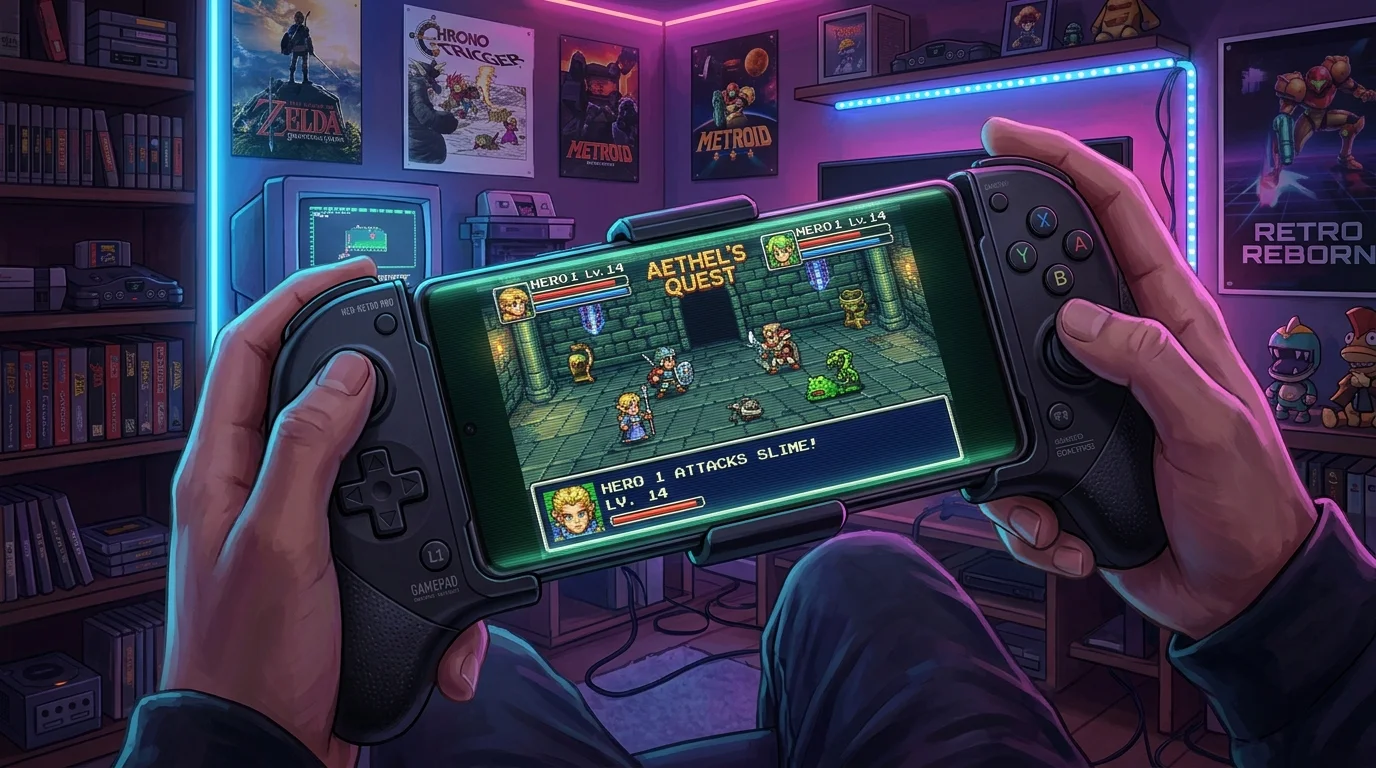
When Apple officially opened the gates to retro gaming emulators on the iOS App Store in 2024 alongside Android’s long-established open-source emulation landscape, mobile hardware entered a glorious golden era of classic gaming preservation. At the absolute summit of this movement sits RetroArch—the legendary, multi-system frontend powered by Libretro cores.
Yet for all its peerless flexibility, RetroArch is notorious for possessing one of the most intimidating, user-unfriendly interfaces in software history. Confronted by nested submenus, cryptic core abbreviations, raw shader directories, and manual latency buffers, casual players frequently abandon the app in frustration.
This ultimate masterclass strips away the confusion. Whether you are playing on an iPhone, iPad, or Android flagship, this guide walks you step-by-step through optimal core selection, CRT and handheld shader configuration, cutting input latency to sub-frame responsiveness via “Runahead”, and setting up seamless cross-platform cloud saves.
1. Initial Setup: Interface Polish & Core Asset Downloads
Upon launching RetroArch for the first time on iOS or Android, the interface often displays missing font icons and barebone settings. Execute this initial hygiene checklist before attempting to load a single ROM:
- Switch to the “Ozone” Menu Driver: Navigate to
Settings > Drivers > Menu Driverand ensure it is set to Ozone (or XMB for a nostalgic PS3/PSP cross-media bar look). - Update Core Assets via the Online Updater: Navigate to
Main Menu > Online Updaterand execute the following in order:- Update Core Info Files
- Update Assets
- Update Controller Profiles
- Update Slang Shaders
- Save Configuration File: Return to
Main Menu > Configuration Fileand tap Save Current Configuration.
This five-minute baseline ensures that all icons render crisply, gamepads are recognized automatically upon connection, and full shader libraries are accessible locally.
2. Core Selection Guide: The Best Engines for Every Era
RetroArch functions by downloading modular emulation engines known as Cores. Choosing the wrong core can lead to poor audio synchronization, graphic glitches, or excessive battery drain.
Here is our tested, definitive matrix of optimal cores for mobile devices:
| Console Platform | Recommended Libretro Core | Why It’s the Best Choice for Mobile |
|---|---|---|
| Game Boy / GBC | Gambatte | Flawless audio pitch timing, built-in classic color palettes, ultra-low battery draw. |
| Game Boy Advance | mGBA | Outstanding cycle-accuracy, solar sensor emulation for Boktai, and custom frame blending. |
| NES / Famicom | Mesen | The pinnacle of NES accuracy with complete HD audio expansion chip support. |
| Super Nintendo | Snes9x (Current) | Perfect equilibrium of cycle accuracy and battery efficiency; vastly less demanding than bsnes. |
| Sony PlayStation (PS1) | Beetle PSX HW / DuckStation (SwanStation) | SwanStation allows internal resolution upscaling to 4K, widescreen hacks, and PGXP perspective correction. |
| Nintendo 64 | Mupen64Plus-Next | Emulates complex microcode graphics effortlessly with ParaLLEl RDP/RSP plugins. |
| Sega Genesis / Mega Drive | Genesis Plus GX | Pixel-perfect audio synthesis and full Sega CD / Master System backward compatibility. |
3. CRT & Handheld Shaders: Restoring Authentic Visual Soul
Modern smartphone OLED displays feature razor-sharp pixel density that can make classic retro games look artificially blocky, flat, and harsh. Original retro developers drew pixel art specifically designed to be smoothed, blended, and illuminated by CRT televisions or low-persistence handheld LCD panels.
RetroArch’s Slang Shader library restores this authentic aesthetic:
Raw Digital Pixels (Harsh, Jagged on 4K OLED)
                      │
           [RetroArch Slang Pipeline]
                      │
         ┌────────────┴────────────┐
         ▼                         ▼
   [CRT-Geom / CRT-Royale]    [LCD-Grid-V2]
   - Scanline bloom           - Subpixel RGB grid
   - Phosphor mask glow       - Authentic ghosting
   - Subtle tube curvature    - Vintage color cast
The Best Shader Presets for Mobile:
- For 8-Bit & 16-Bit Home Consoles (NES, SNES, Genesis):
- Navigate to the in-game Quick Menu (
Tap Screen or Guide Button)> Shaders > Load Preset > shaders_slang > crt. - Select
crt-geom.slangp(orcrt-hyllian.slangpon mid-range devices). - Result: Subtle, natural scanlines with authentic phosphor bloom and zero performance penalty.
- Navigate to the in-game Quick Menu (
- For Handhelds (Game Boy, GBA, Game Gear):
- Navigate to
shaders_slang > handheld. - Select
lcd-grid-v2.slangp. - Result: Recreates the physical subpixel grid of an original GBA SP or Game Boy Pocket screen without dimming the backlight.
- Navigate to
Critical Step: Once you have dialed in your preferred look, navigate to Shaders > Save and select Save Core Preset to ensure the shader automatically applies to every game loaded on that console in the future!
4. Annihilating Input Latency: The Magic of “Runahead”
Bluetooth controllers (like the Xbox Wireless Controller or 8BitDo Pro 2) inherently introduce between 8ms and 20ms of wireless latency. In reflex-intensive platformers like Super Mario World, Castlevania, or Mega Man X, this input delay can make jumps feel loose and sluggish.
RetroArch solves this through an extraordinary computational technique called Runahead Latency Reduction:
How Runahead Works:
Instead of waiting for the frame buffer, RetroArch executes emulation internally several frames ahead of what is displayed, instantly rewinds, and outputs the result in response to your physical controller inputs. It can make wireless emulation feel faster and more responsive than an original console running on an analog CRT TV.
How to Enable It:
- Load your game and open the Quick Menu.
- Navigate to
Settings > Latency. - Toggle Run-Ahead to Reduce Latency to ON.
- Set Number of Frames to Run Ahead to 1 or 2.
- Rule of Thumb: Set to 1 for GBA and SNES games. Setting it beyond 2 can cause visual character flickering.
- Toggle Use Second Instance for Run-Ahead to ON (prevents audio popping on high-end mobile chipsets).
5. Controller Mapping & Custom Touch Ergonomics
Playing on a smartphone means alternating between on-screen touch overlays on the bus and dedicated physical controllers on your couch:
1. Auto-Hiding Touch Overlays
When a physical Bluetooth or USB-C gamepad is detected, the on-screen virtual buttons should disappear automatically:
- Navigate to
Settings > On-Screen Display > On-Screen Overlay. - Toggle Hide Overlay When Controller Connected to ON.
2. Hotkey Shortcuts You Must Map
Never play without dedicated hardware hotkeys. In Settings > Input > Hotkeys, map a shoulder button or stick-click combination to:
- Fast-Forward Toggle: Crucial for speeding through unskippable text in classic JRPGs like Pokemon or Final Fantasy.
- Save State / Load State: Instant checkpoints anywhere.
- Menu Toggle: Instantly summon RetroArch’s control panel during gameplay (recommended:
L3 + R3orSelect + Start).
6. Cross-Platform Cloud Save Synchronization
Nothing is more satisfying than grinding levels in Chrono Trigger on your smartphone during your lunch break and resuming the exact same save file on your iPad or PC in the evening.
The Syncthing / iCloud Method:
- On iOS: RetroArch stores save files (
.srm) in the publicFiles > On My iPhone > RetroArch > savesdirectory. You can use apps like Working Copy or automated Shortcuts to mirror this directory to iCloud Drive or Google Drive. - On Android: RetroArch’s save directory (
/storage/emulated/0/RetroArch/saves/) can be synchronized bidirectionally in real-time using the free, open-source utility Syncthing across your Android phone, tablet, and home PC.
Summary Configuration Checklist
- Menu Driver: Configured to Ozone with fully updated Online Updater assets.
- Core Selection: Snes9x for SNES, mGBA for GBA, SwanStation for PS1, Gambatte for GB.
- Shader Presets:
crt-geom.slangpfor TV consoles;lcd-grid-v2.slangpfor handhelds (saved as Core Presets). - Latency Tuning: Runahead enabled (1 frame) with Second Instance active.
- Overlay Hygiene: “Hide Overlay When Controller Connected” enabled.
- Hotkey Combinations: Fast-Forward, Save State, and Menu Toggle assigned to physical gamepad buttons.
With these professional configurations applied, your mobile device ceases to be merely a telephone—it transforms into the ultimate, cycle-accurate portable arcade spanning thirty years of video game history.