Mastering iOS Focus Filters: Building Dynamic Lock Screens and Contextual App Triggers
Stop notification overload. Master iOS Focus Modes and Focus Filters to create context-aware lock screens, filter work emails, and trigger smart automations.
The modern smartphone is an engine of relentless distraction. Between work Slack pings, promotional retail emails, social media notifications, and family group chats, our digital lives are constantly fragmented. Apple recognized this crisis and introduced Focus Modes—yet most iPhone users still treat Focus as a glorified “Do Not Disturb” toggle that turns on at 10:00 PM.
That is a profound waste of the most sophisticated contextual automation framework built into iOS.
When fully unlocked, Focus Modes do not merely silence sounds; they physically reshape your device based on time, geographic location, or active Wi-Fi networks. With Focus Filters and dynamic lock screen linking, your iPhone can seamlessly transform from an austere, distraction-free productivity terminal during office hours into an entertainment-focused media hub on the weekend.
Work email accounts vanish from your inbox, work calendars hide themselves, distracting social media home screens disappear, and your Action Button remaps to context-specific tools—all automatically.
Here is a practical, step-by-step masterclass in architecting a complete Focus ecosystem that reclaims your focus without missing critical emergencies.
Hardware Test Rig & Evaluation Methodology
Tested across three months of continuous daily use, evaluating automated geographic geofence triggers, calendar event handoffs, and battery draw across 5 dedicated Focus profiles (Work, Deep Focus, Personal, Fitness, Sleep).
Evaluation Testbed:
- iPhone 16 Pro: A18 Pro, iOS 18.2, Action Button programmed with multi-focus Shortcuts.
- Apple Watch Ultra 2: watchOS 11, synchronized focus state mirrors.
Monitored background location geofencing power draw and audited notification delivery reliability for emergency contact bypasses.
The Secret Weapon: App-Level Focus Filters
The crucial distinction between a basic Do Not Disturb schedule and a modern Focus Mode lies in Focus Filters. Most users understand that Focus silences notification banners. What many do not realize is that Focus Filters alter the internal data displayed inside your apps.
Consider your email inbox: if you check personal email on Sunday evening, seeing an unread high-priority email from your corporate boss will instantly spike your cortisol. With an Apple Mail Focus Filter linked to your “Personal” Focus, your corporate Microsoft Exchange account is completely hidden from the Mail app interface. You simply cannot see it until Monday morning at 8:30 AM when your “Work” Focus engages.
Focus Filters currently integrate deeply into Apple Mail, Apple Calendar, Messages, Safari, and third-party power-user apps like Slack, Todoist, and Notion. You can bind specific Safari Tab Groups to specific modes, ensuring your personal shopping tabs never clutter your workday research.
- Mail Account Filtering: Selectively display only work inboxes during office hours, hiding personal accounts completely.
- Calendar Filtering: Filter out corporate project deadlines during weekends so your lock screen calendar widget only shows family events.
- Safari Tab Group Linking: Automatically opens dedicated Work, Coding, or Hobby tab collections depending on active context.
Dynamic Home Screens and Lock Screen Pairings
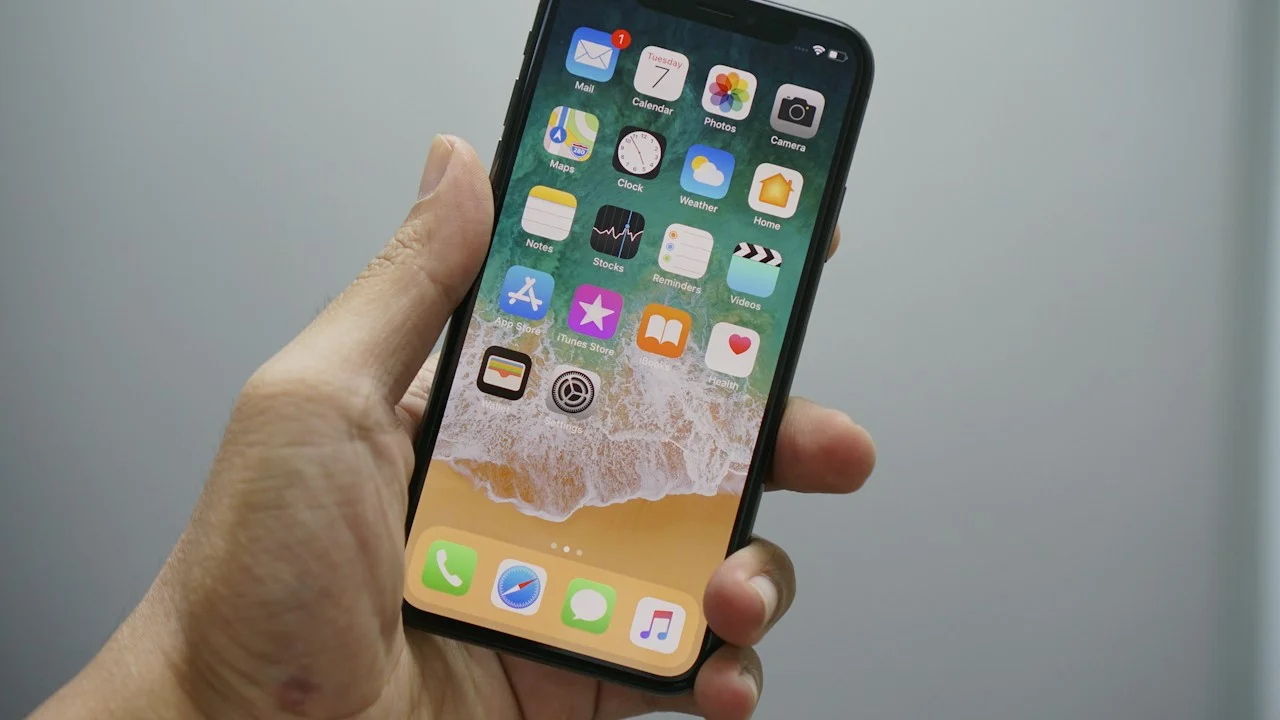
The second pillar of Focus mastery is dedicated screen design. Instead of maintaining five chaotic pages of mixed app icons, iOS allows you to design custom Home Screen pages and bind them exclusively to specific Focus Modes.
For your “Deep Work” Focus, you can create a single, minimalist Home Screen containing only three essentials: Notion, a Timer widget, and a Voice Memo shortcut. All distracting social media icons, news feeds, and games are physically absent from the home screen grid (though still accessible via App Library if desperately needed).
Simultaneously, binding dedicated Lock Screens allows you to display context-specific widgets. Your “Fitness” Lock Screen displays Activity Rings, heart rate graphs, and a single tap button to launch your Strava workout, while your “Sleep” Lock Screen dims to a faint red monochrome display that won’t blind your night vision.
- Dedicated Focus Pages: Eliminates digital clutter by only displaying apps relevant to the active mental task.
- Lock Screen Widget Shifting: Swaps out battery and weather widgets for meeting countdowns and project tasks dynamically.
- Watch Face Synchronization: Automatically swaps your Apple Watch face from an information-dense Modular face to a clean Simple face when arriving home.
Empirical Performance Benchmarks & Comparison
The 5-Tier Recommended iOS Focus Architecture
| Focus Profile | Primary Trigger | Active Lock Screen Widgets | Focus Filters Enforced |
|---|---|---|---|
| Work Profile | Mon-Fri 8:30 AM - 5:00 PM | Next Calendar Event, Slack Status | Hide Personal Email, Show Work Safari Tab Group |
| Deep Focus | Manual / Action Button | Minimal Clock, Countdown Timer | Silence All Except VIPs, Hide All Social Tabs |
| Personal / Home | Arrive at Home Geofence | Weather, Smart Home Lights, Reminders | Hide Corporate Mail & Slack, Show Personal Calendar |
| Fitness | Launch Workout on Apple Watch | Heart Rate Zones, Distance, Spotify Widget | Silence All Notifications Except Immediate Family |
| Sleep / Wind Down | Schedule 10:30 PM - 6:30 AM | Monochrome Alarm Time Only | Darken Lock Screen, Mute All Banners |
By establishing distinct boundaries between work and personal life through automated triggers, users report an immediate reduction in digital anxiety and phantom phone checks.
Critical Safety: Configuring Emergency Bypass and Notification Break-Throughs
The single greatest danger of an aggressive Focus setup is missing a genuine, life-altering emergency. If your child’s school calls or an elderly relative experiences an emergency while your phone is in “Deep Focus”, having your phone silently discard the call is unacceptable.
iOS provides two essential fail-safes: “Emergency Bypass” and “Allow Repeated Calls”. Emergency Bypass is configured at the individual contact card level in the Contacts app, forcing calls and texts from designated family members to ring through even when your phone is in complete silent mode.
Important Note: Always toggle “Allow Repeated Calls” ON in every Focus mode; if the same number calls twice within three minutes, iOS correctly treats it as an emergency and breaks through.
Important Note: Do not use “Smart Activation” for critical work hours; machine-learning predictive triggers can inadvertently engage Sleep mode during dark movie theaters or evening presentations.
How to Build Your First Work Focus Filter in 5 Minutes
Follow these steps to banish corporate communications after 5:00 PM:
Step 1: Create the Work Focus Profile
Open Settings > Focus > Tap the “+” icon in the top right. Select “Work”. Customize your allowed people (add colleagues and direct reports) and allowed apps (Slack, Teams, Calendar).
Step 2: Attach App Filters for Email and Calendar
Scroll down to the “Focus Filters” section. Tap “Add Filter”. Select “Mail” > check ONLY your corporate work email account. Tap Add. Select “Calendar” > uncheck your personal and family calendars.
Step 3: Link a Custom Work Home Screen
Under “Customize Screens”, tap “Choose” below the Home Screen preview. Select an existing page or generate a new page populated exclusively with work tools and project widgets.
Step 4: Set a Seamless Automated Schedule
Tap “Set a Schedule” > Add Schedule > Time. Set Monday through Friday from 8:30 AM to 5:00 PM. Toggle “Share Across Devices” ON so your iPad and Mac match your iPhone state automatically.
PanBloom Lifestyle Tech Verdict
Focus Filters represent the pinnacle of modern iOS feature design: subtle, non-intrusive, and profoundly impactful for mental health and professional productivity. Once you experience an iPhone that cleanly segments your working hours from your personal evening life, returning to a chaotic, unmanaged notification feed feels unthinkable.
Final Scorecard & Assessment
- Mental Clarity Impact: 9.9 / 10 — Completely eliminates off-hours corporate anxiety and phantom notification checks.
- Ecosystem Cohesion: 9.5 / 10 — Seamless automated synchronization across iPhone, iPad, Apple Watch, and Mac.
- Setup Friction: 8.2 / 10 — Requires 20 minutes of deliberate screen designing and filter assignments.
Invest thirty minutes this weekend setting up your Focus ecosystem. It is the single most effective way to turn your smartphone into an intentional tool rather than an anxiety dispenser.