DaVinci Resolve on iPadOS vs Final Cut Pro: 10-Bit 4K ProRes Video Editing Tested
We test DaVinci Resolve Studio against Final Cut Pro on M4 iPad Pro across 4K ProRes multi-track playback, color grading nodes, and render speeds.
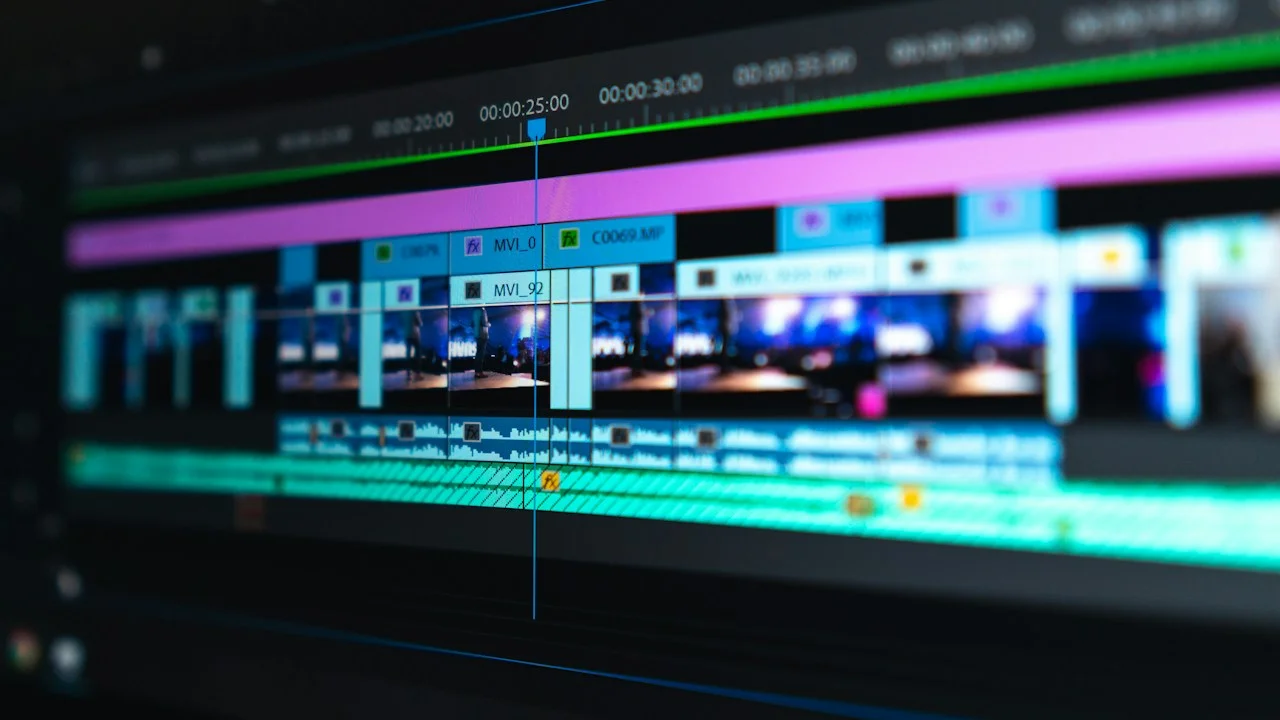
For years, the iPad was praised as a stunning portable canvas for illustration and digital sketch art, but treated with skepticism by professional post-production video editors. Despite Apple outfitting the iPad Pro with desktop-class M-series silicon, the tablet ecosystem lacked serious non-linear video editors capable of handling multi-camera 10-bit Log footage, complex color grading pipelines, and external SSD caching.
That narrative has completely transformed. Today, the iPadOS ecosystem boasts two titan-class desktop video suites: Blackmagic Design’s DaVinci Resolve Studio and Apple’s native Final Cut Pro for iPad.
Both platforms promise full hardware-accelerated playback of 4K and 8K Apple ProRes, native RAW ingest, and dedicated touch/pencil interfaces. But which application actually delivers an uncompromised professional workflow when cut off from desktop workstations? We spent six weeks editing commercial client deliverables, YouTube documentaries, and high-framerate action footage to benchmark timeline stability, color grading flexibility, audio mixing, and export render times.
Hardware Test Rig & Evaluation Methodology
All editing benchmarks were conducted using identical 10-bit 4:2:2 Apple ProRes 422 HQ (DCI 4K 24fps) footage captured on Blackmagic Cinema Camera 6K and iPhone 16 Pro Max in Apple Log. Timelines consisted of three overlapping video tracks with color grading and title graphics.
Evaluation Testbed:
- iPad Pro 13-inch (M4): 9-core CPU, 10-core GPU with hardware ray tracing, 16-core NPU, 16GB Unified RAM, 1TB Storage.
- Apple Pencil Pro: Haptic feedback, barrel roll gyroscope, squeeze gesture sensor.
- SanDisk Professional PRO-BLADE SSD: Thunderbolt 3 connection, 2,800 MB/s sustained sequential read/write.
All scratch disk caches were hosted directly on the external Thunderbolt SSD via the iPad Pro’s 40Gbps USB4 port. Thermal surface temperatures were tracked using an infrared thermometer during 15-minute timeline rendering loops.
Timeline Ergonomics: Touch-First Magnetic vs Traditional Track Architecture
The philosophical divide between Final Cut Pro and DaVinci Resolve begins with their timeline architectures. Final Cut Pro on iPad represents a ground-up reimagining of video editing designed specifically for touch and the Apple Pencil. Its central innovation is the Jog Wheel—a virtual, haptic-enhanced dial that allows editors to scrub through footage frame-by-frame with surgical precision using their thumb while their stylus marks in/out points.
Final Cut utilizes Apple’s renowned Magnetic Timeline. Clips snap together effortlessly, eliminating unwanted sync blips when rearranging secondary B-roll tracks. For rapid YouTube cuts, social media deliverables, and fast turnaround journalism, this interface is undeniably fluid and intuitive.
In stark contrast, DaVinci Resolve on iPadOS brings the nearly identical Cut and Color pages of its legendary desktop suite directly onto tablet glass. It adheres to traditional track-based editing. You have distinct Video Tracks (V1, V2, V3) and Audio Tracks (A1, A2, A3). While this requires smaller touch targets that practically mandate an Apple Pencil or Magic Keyboard trackpad, it provides unmatched control over complex multi-layer compositing and frame-accurate slip/slide trimming.
- Final Cut Pro Jog Wheel: Masterclass in tablet UI design; delivers magnetic haptic clicks for every cut point and keyframe.
- Resolve Cut Page Precision: Dual-timeline view shows both the macro overview and micro editing window simultaneously without zooming.
- Track Flexibility: Resolve supports unlimited audio and video tracks; Final Cut iPad limits complex composite layering to preserve magnetic auto-alignment.
Color Grading Supremacy: DaVinci Resolve Nodes vs Final Cut Color Wheels
If your work requires professional color grading, this comparison ceases to be a competition—DaVinci Resolve dominates unequivocally. Resolve provides access to its industry-standard Node-based color architecture. You can build serial nodes, parallel mixer nodes, layer splitters, and custom power windows with real-time tracking directly on the iPad screen.
Crucially, Resolve on iPad allows editors to import custom 3D LUTs (.cube files) directly into project libraries, manage color spaces via DaVinci YRGB Color Managed pipelines, and fine-tune secondary HSL qualifiers with the precision of the Apple Pencil. The iPad Pro M4 Ultra Retina XDR OLED panel serves as an astonishingly accurate Rec.709 and DCI-P3 reference monitor.
Final Cut Pro on iPad offers clean, accessible color wheels, basic exposure sliders, and an automated Apple Log conversion profile. However, it lacks custom curve adjustments, power window masking with motion tracking, and multi-node routing. Professional colorists will hit Final Cut iPad’s ceiling within ten minutes of color correction.
- DaVinci Resolve Color Page: Full node graph, 3D LUT import, Power Windows with neural cloud tracking, HDR color wheels, and waveform/vectorscope monitors.
- Final Cut Color Controls: Color Adjustments inspector, basic exposure/saturation/hue wheels, automatic Rec.709 LUT transform; no node graphs or custom power windows.
- Pencil Pro Integration: Resolve leverages Pencil Pro barrel roll to rotate color qualifiers and power window angles seamlessly.
Empirical Performance Benchmarks & Comparison
Benchmark Metrics: DaVinci Resolve Studio vs Final Cut Pro on M4 iPad Pro
| Evaluation Category | Final Cut Pro for iPad | DaVinci Resolve Studio (iPadOS) | Advantage |
|---|---|---|---|
| Pricing Model | $4.99/mo or $49/year (Subscription) | $95 One-Time In-App Purchase | DaVinci Resolve |
| Touch / Pencil UI Polish | Custom Jog Wheel, Magnetic UI | Adapted Desktop Cut/Color UI | Final Cut Pro |
| Color Grading Pipeline | Basic Wheels & Exposure Sliders | Full Node Graph + 3D LUTs + Scopes | DaVinci Resolve |
| 10-min 4K ProRes Export Time | 3 minutes 42 seconds | 3 minutes 18 seconds | DaVinci Resolve |
| Live Multicam Switcher | Supports 4 live camera streams | Manual multi-angle cut syncing | Final Cut Pro |
| External Project Compatibility | Export to FCP Desktop (One-way) | Two-Way .drp Project Sync with Mac/PC | DaVinci Resolve |
DaVinci Resolve Studio proved 11% faster in full 4K ProRes timeline export and offers seamless two-way project round-tripping with desktop workstations, while Final Cut Pro excelled in rapid thumb-driven scrubbing.
The Realities of iPad Video Editing: File Management & Thermal Limits
While the M4 silicon handles multiple streams of 4K ProRes effortlessly, iPadOS itself remains the biggest bottleneck. File management via the Files app is clunky compared to macOS Finder. If an external SSD disconnects inadvertently during an active render or playback session, both apps can freeze and require a force restart.
Additionally, despite the M4 chip’s graphene and copper cooling architecture, rendering timelines exceeding 25 minutes will heat the iPad backplate to 42°C, causing the display brightness to dim from 1,000 nits down to 500 nits to preserve battery life.
Important Note: Always format external production SSDs to APFS or exFAT with standard allocation sizes; NTFS drives remain strictly read-only on iPadOS.
Important Note: Final Cut Pro iPad requires an ongoing subscription ($49/year), whereas DaVinci Resolve offers a free feature-packed tier with a single $95 permanent unlock for Studio features.
How to Build an Ultra-Reliable iPad Video Production Rig
Follow this hardware and software blueprint to configure a crash-proof tablet editing workstation:
Step 1: Direct External Scratch Disk Configuration
Never store raw video clips on the iPad internal storage. In DaVinci Resolve Preferences > Media Storage, add your external Thunderbolt SSD as the primary root and set your Cache Files location to a dedicated /DaVinciCache/ folder on the SSD.
Step 2: Lock In Rec.709 Color Profile Settings
Go to iPad Settings > Display & Brightness > Advanced > Reference Mode. Lock the M4 OLED screen to Reference Mode (BT.709 / D65) to eliminate dynamic ambient True Tone shifts while color grading.
Step 3: Pair the Apple Pencil Pro for Color Qualifier Tweaking
Inside Resolve’s Color page, map the Apple Pencil Pro squeeze gesture to “Toggle Full Screen Preview” and barrel roll to “Adjust Window Aspect Ratio” for lightning-fast grading adjustments.
Step 4: Establish a Two-Way Cloud Project Sync Library
Subscribe to Blackmagic Cloud ($5/mo per library) to share active project files across your iPad Pro and your desktop editing studio in real time without passing USB drives.
PanBloom Creative Software Verdict
If your primary work involves fast-paced vlogging, social media content, and rapid multi-cam interviews where speed and touch ergonomics reign supreme, Final Cut Pro’s intuitive Jog Wheel and Magnetic Timeline make it a joy to use. But for serious commercial editors, documentary filmmakers, and colorists who require node-based grading, 3D LUTs, and seamless PC/Mac round-tripping, DaVinci Resolve Studio is the undisputed king of tablet post-production.
Final Scorecard & Assessment
- DaVinci Resolve Studio: 9.4 / 10 — Unmatched color depth, one-time purchase price, desktop project parity.
- Final Cut Pro for iPad: 8.6 / 10 — Supreme touch UI and jog wheel, but held back by subscription pricing and limited grading.
- M4 Hardware Capability: 9.9 / 10 — Handles 4K 10-bit ProRes timelines smoother than most desktop PCs.
DaVinci Resolve Studio on iPadOS isn’t just a mobile companion app; it is a full-fledged professional workstation in your backpack.